Telegram Communities: review chat visibility and access before launch
Plan a Telegram Community with public and staff chats, review who can add chats, and test access and moderation before inviting members.
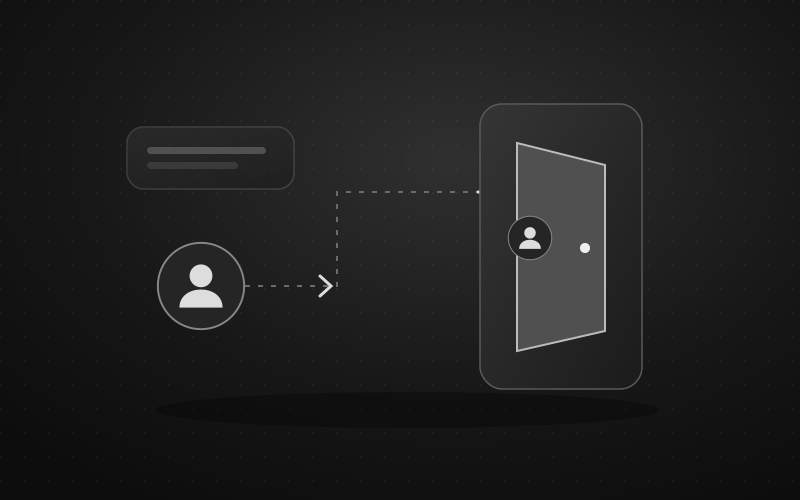
Before connecting your Telegram chats into a Community, decide who should discover and enter each one. Start with the announcement channel and member discussion. Leave staff conversations and moderation records out of the first rollout until their audience has been reviewed.
This guide covers Telegram Communities, the named feature, rather than a community in the everyday sense. Use this checklist before inviting a wider audience.
Communities, forum topics and shared folders
Telegram introduced Communities on 14 July 2026 to connect groups, channels and bots. Members can find and join visible chats without an invite link. Hidden chats are shown to their members and Community administrators. Members can add chats by default; restricting additions makes proposed chats appear as suggestions. These are the core behaviors described in Telegram's release announcement.
Choose the structure around the problem you need to solve:
- Organizing discussions inside one group: Telegram's forum model puts topics within a group. Review topic permissions if your question is about read-only announcements or private staff discussions.
- Sharing a curated set of chats: a shareable folder distributes selected groups and channels through a folder invitation. Audit the chats included in that link separately.
- Planning a Community: use the checks below to agree on its chat directory, intended audiences and responsibility for additions.
Avoid rebuilding an established forum merely because a new feature exists. Write down what members currently struggle to find and the specific improvement you expect. If a clearer pinned index solves that problem, try it before introducing another structure to maintain.
Make a chat inventory before changing settings
Create a private working list with one entry for each candidate chat. Include its name, purpose, owner, intended readers, current entry routes and the person responsible for moderation. Record the planned visibility as a decision still to be verified.
Pay particular attention to chats whose names sound public but whose history includes private material. An old event-planning group may contain volunteer contact details. A support group may have accumulated incident reports. Ask the owner to review the actual content before recommending a broader audience.
For a local maker club, a reasonable planning example would be:
- Club news: intended for every member. Review it as a candidate for the public-facing directory.
- Workshop questions: intended for member discussion. Assign a moderator and decide where technical questions belong.
- Organizers: intended for the current organizing team. Keep it outside the initial rollout while reviewing membership and visibility.
- Moderation records: intended for designated reviewers. Treat its access review as a separate task, including who receives bot logs.
These are audience decisions, not claims that a chat name enforces privacy. Do not label an unresolved chat “safe” merely because it has a lock icon or a familiar owner. Give unresolved entries a responsible person and a clear next check.
Read the visibility confirmation for the exact chat
Before confirming an addition, compare the selected chat and visibility against your inventory. Have another administrator review the choice when it involves internal conversations or records about members. Check who can see the listing and who can read messages as separate questions.
The official translation screenshot includes a warning that the selection cannot be changed later. That is evidence to inspect the confirmation carefully, not a guarantee about every client, operation or future version. If your screen contains such a warning, do not proceed on the assumption that you can simply toggle the choice back afterward.
For a sensitive chat, pause when any of these questions remains unanswered:
- Is this the correct chat, including any older similarly named group?
- Is it acceptable for the people administering the Community to see this chat listed?
- Has someone checked its existing messages and membership?
- Is the effect described by the current confirmation acceptable?
Keep a brief record of the decision and the screen's relevant wording. Avoid capturing real incident messages, member contact details or private invitations in a screenshot intended for broad circulation.
Decide who may add chats
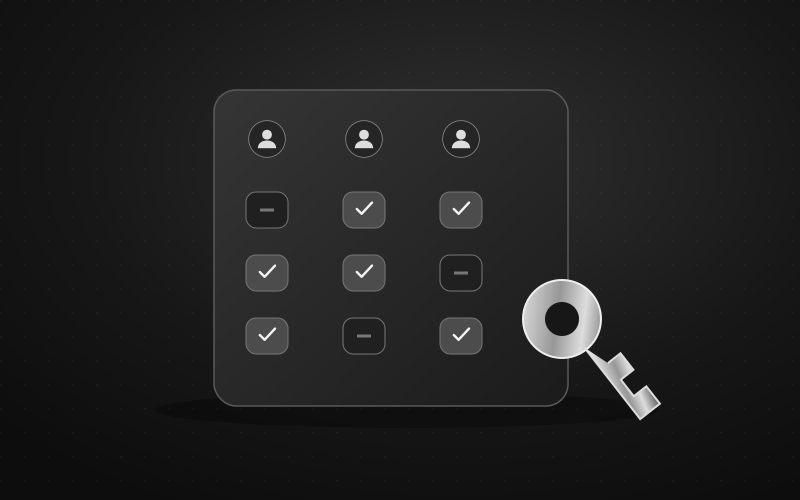
For an official club, product or customer Community, a reviewed directory is a sensible starting recommendation. Check the add-chat setting before inviting the wider audience. Choose the available option that matches your agreed approval process, and test it with an ordinary member.
Assign one person to review proposed additions and a backup for absences. A short review should answer:
- Does the chat serve a purpose members can understand?
- Has its owner agreed to its inclusion and intended audience?
- Is there a named moderation contact?
- Are its name, description and pinned introduction accurate?
- Does it duplicate an existing discussion or send members to an unrelated destination?
A participant's recommendation is useful input, but it should not be treated as proof that the chat is official. For example, a helpful member might propose an independent resale group. The review should establish who runs it and whether your team is willing to direct members there before it appears in your approved directory.
Test the experience with different account roles
Use consenting testers and harmless content. Start with a small pilot; reproduce risky cases in disposable test chats rather than using real staff records. Record each tester's role and existing memberships before checking access.
Include these separate perspectives:
- A Community member who has not joined the target discussion. Ask them to find the intended public-facing chat and follow the available entry flow. Record what actually happens.
- A member who is outside a mock staff chat. Check the directory and a link to a harmless test message in that chat. Stop if they expose something unexpected.
- An intended member of that mock staff chat. Check that the person can find and use the space through the planned route.
- A Community administrator. Record that account's experience separately; it should not stand in for the ordinary-member check.
Also test the agreed chat-addition process. Use a test chat and confirm whether the result matches your policy before trying it with a real partner group.
Keep the test record simple: account role, prior membership, app and version, attempted action, expected result, observed result and follow-up owner. An already joined tester cannot establish how a newcomer enters. If two devices disagree, capture the difference and investigate before declaring the setup ready.
Check moderation in each connected group
Use a separate checklist for each group rather than treating the Community launch as proof that moderation is configured everywhere. For Defendy, the installation guide describes adding the bot to a group and selecting that group in the control panel. Confirm the selected group before reviewing its settings, and compare the bot's authority with the permissions guide.
For every group you intend to protect:
- Name the human responsible for mistakes and appeals.
- Review its rules, enabled filters and intended sanctions.
- Exercise the relevant features with harmless examples in a controlled test.
- Check where notices and moderation records go, including the audience at that destination.
- Write down unresolved behavior instead of assuming the neighboring group's configuration applies.
If admission uses CAPTCHA, follow the mode-specific setup guide. Test the actual entry route from your Community as well as any separately distributed invitations. Use the invite-link and join-request guide for the broader entry audit.
The linked Defendy instructions describe settings for individual groups. Check each required behavior involving bans, roles, history access, subscriptions or CAPTCHA in the relevant group. An observed action in one group does not establish the outcome elsewhere. When documenting an incident, name the affected group and the observed action so another moderator knows what still requires attention.
Launch with a short directory and a clear support route
Publish a plain-language introduction explaining where announcements, questions and activity-specific conversations belong. Give members a way to report an unexpected chat or an access problem without having to post inside the very space they cannot enter.
Before the announcement, confirm that:
- Every included chat has an agreed purpose, audience and owner.
- Sensitive spaces have completed their separate access review.
- The addition process matches the team's decision.
- Ordinary-member tests produced the expected results.
- Each discussion group has an accountable moderator and checked settings.
- Someone will handle questions during the initial rollout.
If an unexpected chat appears or private content becomes accessible, stop directing more people to it while you establish what happened. Review the available controls and affected memberships before taking corrective action. Do not assume that removing a directory entry reverses access already granted or retracts material people have received.
Repeat the relevant checks when a chat, its purpose or the responsible team changes. Keep the directory short enough that a newcomer can choose the right place without asking a moderator first.
Sources and scope
Reviewed on 7 October 2026 against the linked primary Telegram sources and Defendy documentation. No live Community, client interface or cross-chat enforcement behavior was tested for this article. Menu paths, client availability and the interaction of Community entry with individual admission rules require verification in the setup you operate.